Planningsagenda Manual Planningsagenda Adjusting MFA
hassle-free, sorted in a snap
If you want to change your multifactor authentication from phone to authenticator app, you can do that too. This could be, for example, if you are going to change your phone number or if you just want to switch to the Authenticator App.
Notice: this manual applies only to client users (administrators and executives). For employees/clients, this change is not yet possible.

Step 1
Your personal activation email from the portal contains a sentence with a link.
If you are viewing this manual on your computer you can also click on this link.
Step 2
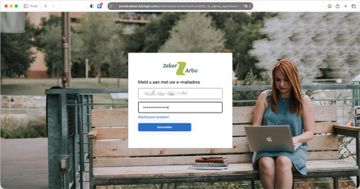
This will take you to the portal login screen. Here, enter your email address (where you received the activation email) and your password.
Step 3
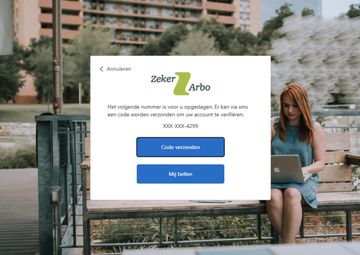
Before the MFA can be changed from phone to authenticator app (or vice versa), the currently set MFA must be passed through for security. Depending on what you have set up, that is either through your phone or through the authenticator app. First, click send code.
Note: If you did not do this via your phone before because your phone number is not known to ZekerArbo, you will receive the code via email.
Step 4
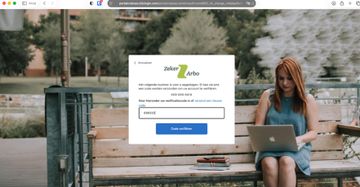
The code will then be sent to you via SMS. Enter the code and click Verify Code.
Step 5
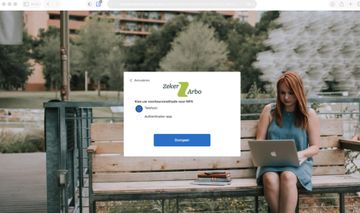
On the next screen you can choose which MFA you want to set up. Here we offer two options:
- Phone
- Authenticator app
Both options are explained below.
Option 1: Telephone
Choose "Phone" and click Continue.
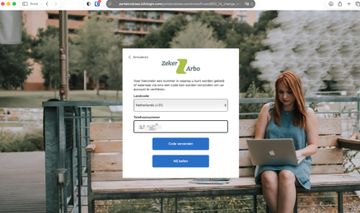
Enter the new phone number and click Send Code.

An SMS will now be sent to the number you entered. Enter the code from this SMS and click Verify Code.
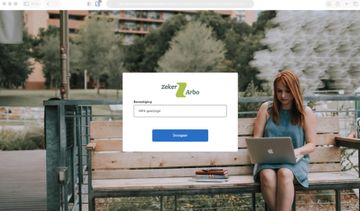
The MFA has now been updated. From now on, MFA will run through the newly set up phone number.
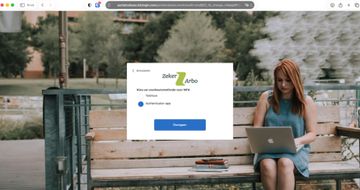
Option 2: Authenticator app
Choose "Authenticator app" and click Continue.
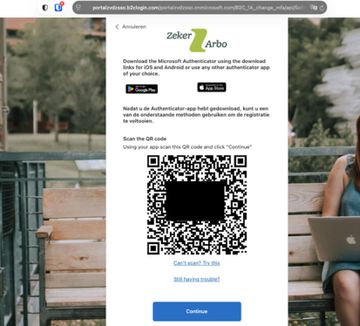
Download the Microsoft or Google Authenticator app on your user's phone (if you don't already
don't already have one) and open the app.
In further instructions, we will assume the Microsoft Authenticator, but the Google Authenticator
offers the same features.
Press the QR code button at the bottom right and "scan" the QR code on the screen.
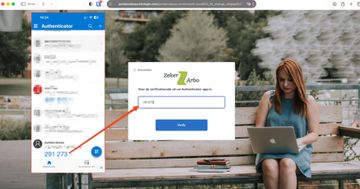
Then enter the 6-digit code generated in the authenticator on the screen click Verify.
MFA has been changed. From now on, MFA will run through the Authenticator App