Planningsagenda Manual Planningsagenda for administrators
hassle-free, sorted in a snap
Scroll down for explanation or go directly to:
First time login
Setting a new password
Change MFA
Is your question not listed here?
Go to the general page for Planningsagenda
First time login

Step 1
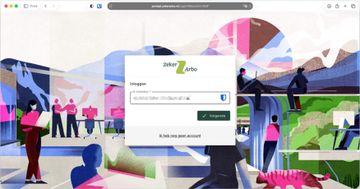
You have received a welcome e-mail. In it you received a temporary password and a link to the Employer Portal:
Step 2
Click the green 'Employer Portal' button or navigate to zekerarbo enter your email address (Note: enter the email address to which the activation email was sent) and press Next.
Step 3
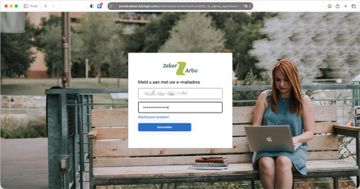
A login page will be displayed. Enter here as username the mail address (where the activation email went to and enter as password the temporary password from the activation email.
Step 4
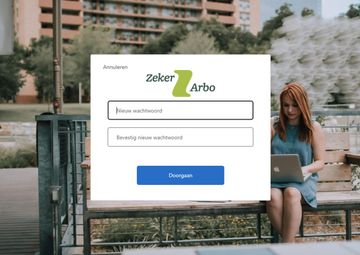
Then choose a new password for yourself. This must be entered twice to avoid typing errors. Then click Continue.
Step 5
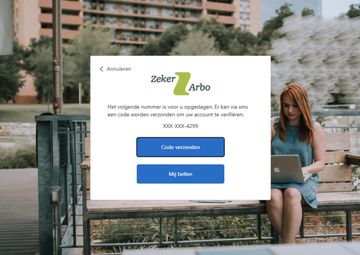
As additional security, you must verify with the phone number known to ZekerArbo . This can be done, for example, by sending a code in an SMS to the mobile number. Another option is to have the number called.
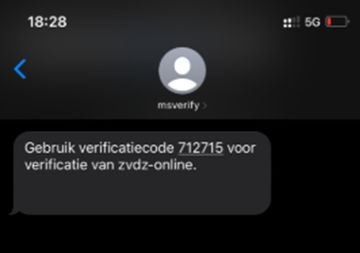
When you choose to have a code sent, the user will receive a code via SMS, as below. You then enter this code in the field and then click Verify Code.
If you choose to be called, you will receive an automated phone call from Microsoft. This will ask you to press the hash (#) on the phone to continue logging in.
Notice: If no phone number of yours is known to ZekerArbo, the security code will be sent to the email address (the same one you received the activation email on). Entering the code then works the same way as the code via SMS.
If you have gone through this once, then the authenticator is set up and the account is "done.
Now you can move on to logging in.
Step 6
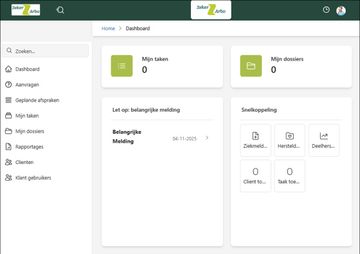
To log in, go to zekerarbo in your Internet browser (such as Microsoft Egde or Google Chrome). By entering your e-mail address and your newly coined password, you will be asked to go through multi-factor authentication one more time. By entering the code after SMS or receiving the automated call and pressing hash (#), you will log in and be taken directly to your dashboard.
Set new password
It is possible that you have forgotten your password. Below are the steps to set up a new password.
Step 2
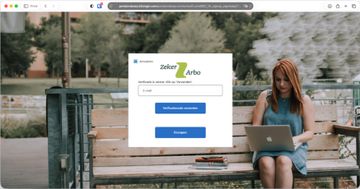
You will then see the page as below: the login screen. Then click on the "Forgot your password?" button.
Step 3
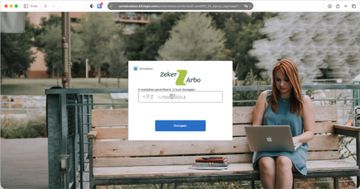
Enter here again your email address (where you received the activation email and click on Send verification code
Step 4
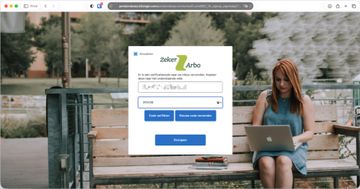
An email containing a verification code will be sent to your email address. Copy this code over and click on Verify Code.
Step 5
You will then see a confirmation that the email address has been verified. Then click Continue.
Modify MFA
If you want to change your multifactor authentication from phone to authenticator app, you can do that too. This could be, for example, if you are going to change your phone number or if you just want to switch to the Authenticator App.
Step 1
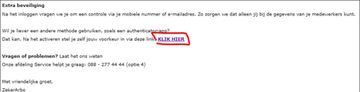
Your personal activation email from the portal contains a sentence with a link:
If you are viewing this manual on your computer you can also click on this link.
Step 2
This will take you to the portal login screen. Here, enter your email address (where you received the activation email) and your password.
Step 3
Before the MFA can be changed from phone to authenticator app (or vice versa), the currently set MFA must be passed through for security. Depending on what you have set up, that is either through your phone or through the authenticator app. First, click send code.
Note: If you did not do this via your phone before because your phone number is not known to ZekerArbo, you will receive the code via email.
Step 4
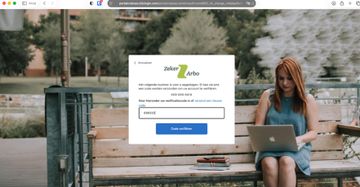
The code will then be sent to you via SMS. Enter the code and click Verify Code.
Step 5
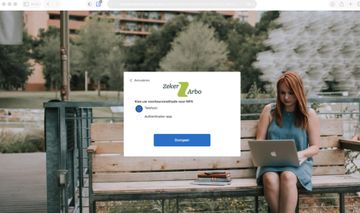
On the next screen you can choose which MFA you want to set up. Here we offer two options:
- Phone
- Authenticator app
Both options are explained below.
Option 1: Telephone
Choose "Phone" and click Continue.
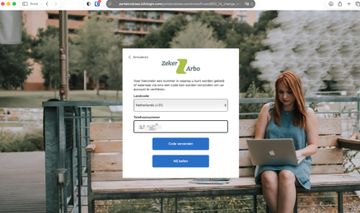
Enter the new phone number and click Send Code.
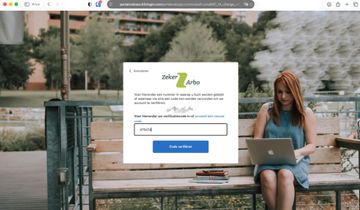
An SMS will now be sent to the number you entered. Enter the code from this SMS and click Verify Code.
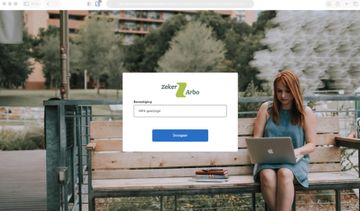
The MFA has now been updated. From now on, MFA will run through the newly set up phone number.
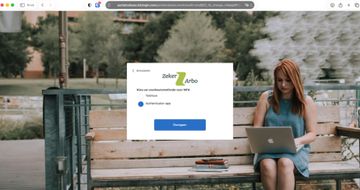
Option 2: Authenticator app
Choose "Authenticator app" and click Continue.
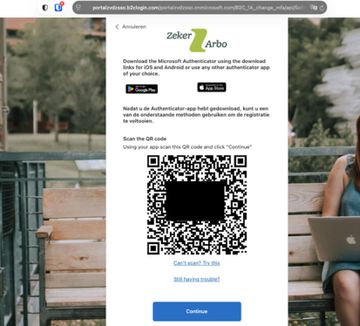
Download the Microsoft or Google Authenticator app on your user's phone (if you don't already have one) and open the app. Then press the QR code button at the bottom right and "scan" the QR code on the screen.
An account is now automatically added in your Authenticator App, named portalzvdzsso(note: you can change this name later). Then click Continue.
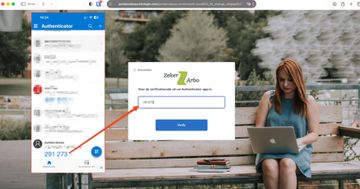
Then enter the 6-digit code generated in the authenticator on the screen click Verify.
MFA has been changed. From now on, MFA will run through the Authenticator App